
Windows Safe Mode is one of the most powerful built-in troubleshooting tools. It loads only the absolute minimum drivers and services, letting you fix driver conflicts, malware, startup crashes, and blue screens without interference.
When to Use Safe Mode
- Driver crashes or BSODs after updates
- Malware that won’t let you run antivirus in normal mode
- Programs that won’t uninstall
- Corrupted system files or startup issues
Quick Ways to Enter Safe Mode (Windows 11 / 10)
Method 1 – Easiest (Shift + Restart)
- Hold Shift key
- Click Restart (from Start menu or login screen)
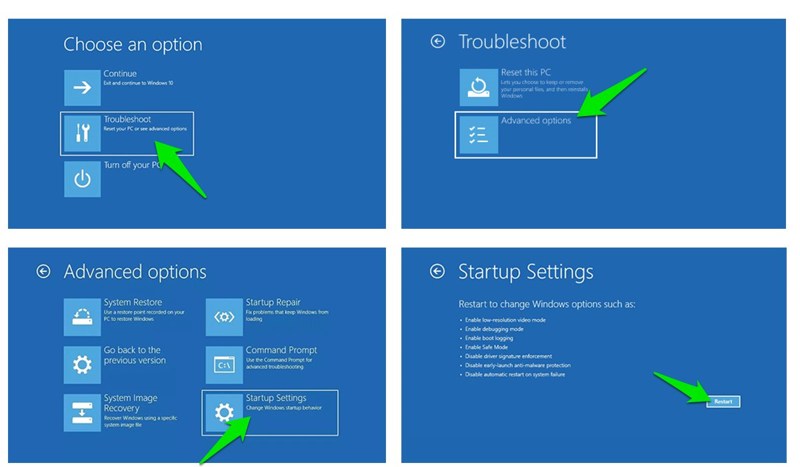
- Go to: Troubleshoot → Advanced options → Startup Settings → Restart
- Press 4 or F4 for Safe Mode
Press 5 or F5 for Safe Mode with Networking
Method 2 – From Settings (Recommended)
- Press Win + I → System → Recovery
- Under Advanced startup, click Restart now
- Follow the same path: Troubleshoot → Advanced options → Startup Settings → Restart → press 4
Method 3 – From Login Screen (No password needed)
- At the login screen, hold Shift and click the power icon → Restart
- Same steps as above
Method 4 – Using msconfig (Fast for repeated use)
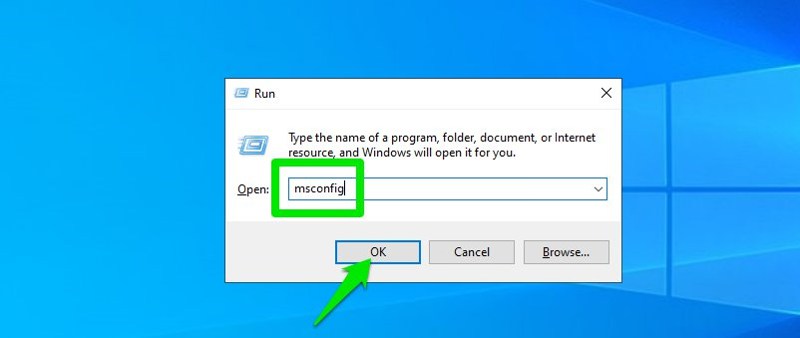
- Press Win + R, type
msconfig, press Enter - Go to Boot tab → check Safe boot → Minimal (or Network)
- Click OK → Restart
Method 5 – From Command Prompt (Advanced)
shutdown /r /o /f /t 00Keyboard Shortcuts Inside Safe Mode
| Action | Shortcut |
|---|---|
| Open Task Manager | Ctrl + Shift + Esc |
| Open Run dialog | Win + R |
| Open Device Manager | Win + X → M |
| Open System Information | msinfo32 |
| Open Command Prompt as Admin | Win + X → A |
| Switch between apps | Alt + Tab |
Pro Tips & Tricks
- Safe Mode with Networking – Use this when you need internet (download drivers, run online scans).
- Uninstall Problem Drivers
In Safe Mode → right-click Start → Device Manager → uninstall suspicious drivers (especially graphics or recent hardware). - Run SFC and DISM Scans
   sfc /scannow
DISM /Online /Cleanup-Image /RestoreHealth- Clean Boot for Diagnosis
Usemsconfig→ Services tab → Hide all Microsoft services → Disable all → Restart normally. This helps isolate third-party software. - Malware Removal
Run Windows Defender full scan or your favorite offline scanner (Malwarebytes, ESET, etc.) in Safe Mode. - Registry Trick to Force Safe Mode on Next Boot
bcdedit /set {default} safeboot minimalTo disable: bcdedit /deletevalue {default} safeboot
- Exit Safe Mode Quickly
- Just type
msconfigand uncheck Safe boot, then restart. - Or run
bcdedit /deletevalue {default} safebootin admin Command Prompt.
Summary of Safe Mode Entry Methods
| Method | Speed | Requires Login | Best For |
|---|---|---|---|
| Shift + Restart | Fast | No | Most users |
| Settings → Recovery | Medium | Yes | Clean access |
| msconfig | Fast | Yes | Repeated troubleshooting |
| Login Screen Shift | Fast | No | Forgotten password cases |
Safe Mode is still one of the best free tools Microsoft gives us. Master these shortcuts and you’ll solve most Windows problems in minutes.
Need help with a specific Safe Mode issue? Drop it in the comments and I’ll walk you through it!
Sources: Microsoft Support, Windows Central, TechPowerUp, ElevenForum, Reddit r/Windows11