Image credit: Microsoft
Microsoft’s attempt to make File Explorer feel snappier in Windows 11 by preloading it at startup is now live in Insider builds — and the results are underwhelming.
Independent testing on the latest Windows 11 Insider Preview Build 26220.7271 (Dev and Beta channels) shows that while the preload does technically reduce launch time, the improvement is so small that most users won’t notice it in daily use. At the same time, it nearly doubles the app’s memory footprint.
Hard Numbers from Testing
| Scenario | RAM Usage | Cold Launch Time (approx.) | Noticeable Difference? |
|---|---|---|---|
| File Explorer (no preload) | ~35 MB | 1.8–2.2 seconds | – |
| File Explorer (preloaded) | ~67.4 MB | 1.1–1.5 seconds | Only visible at 0.25× speed |
Even under normal viewing speed, the difference is barely perceptible. Slow-motion playback (0.25×) is required to actually see the preload doing anything.
What the Preload Doesn’t Fix
- Right-click context menus still take 1–2 seconds to appear
- Switching between folders remains laggy
- Opening new Explorer windows after the first one is still slow
- Third-party shell extensions and heavy UI effects (transparency, Mica, animations) continue to be the main culprits
In short, preloading only shaves off the very first cold-start delay — a fraction of the overall performance problems users complain about.
Why Windows 11 Explorer Feels Slower Than Windows 10
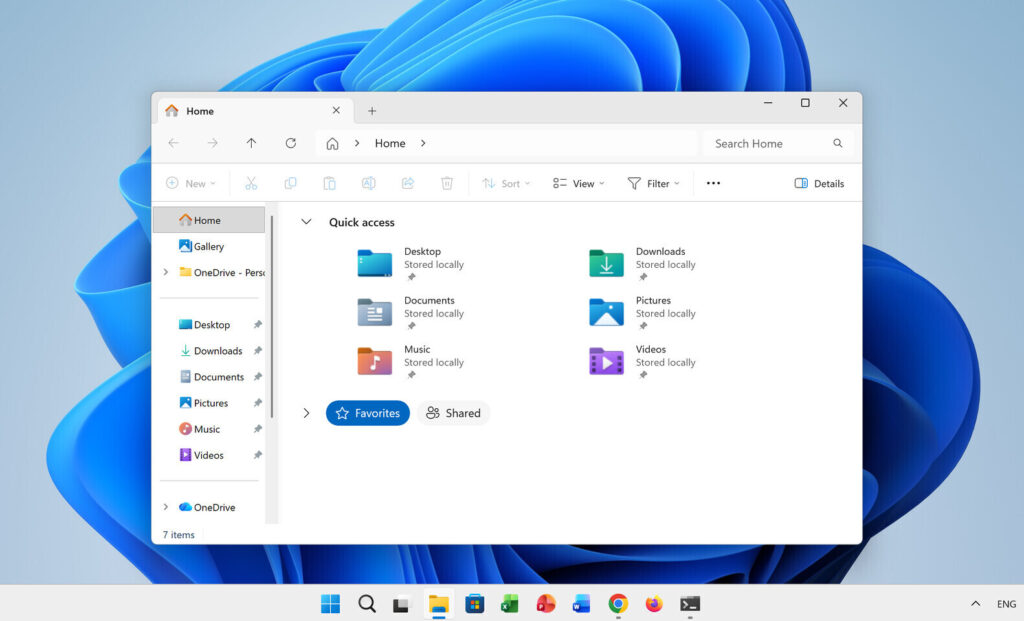
The root cause hasn’t changed: Windows 11 wraps the classic Win32 File Explorer core inside a heavier WinUI 3 / XAML shell for modern visuals (rounded corners, acrylic blur, etc.). That extra layer adds overhead that didn’t exist in the leaner Windows 10 version.
Quick Fixes That Actually Help Right Now
If you’re tired of the sluggishness, try these (they often deliver bigger improvements than Microsoft’s preload):
- Disable transparency: Settings → Personalization → Colors → Turn off “Transparency effects”
- Turn off animations: System → About → Advanced system settings → Performance Settings → “Adjust for best performance”
- Remove bloated context-menu extensions with ShellExView (NirSoft)
- Switch to List view instead of fancy icon layouts
- Consider a lightweight third-party alternative (Files, OneCommander, Total Commander)
Bottom Line
Preloading File Explorer is a band-aid that costs ~32 MB of extra RAM 24/7 in exchange for a launch speedup you’ll only notice in slow-motion videos. Until Microsoft addresses the deeper WinUI overhead and shell-extension issues, the “fix” feels more like a stopgap than a real solution.
The feature is currently opt-in in Insider builds and is expected to become the default behavior in stable Windows 11 releases sometime in early 2026.
Source: Windows Latest